From a Food Truck Idea to a Live Website: My Rebel Vibe Test
I started with a fictional business and a movie reference. Here’s how I built its website, what needed fixing, and the prompts I used along the way.
You know what your business does. Getting it onto a website can be the harder part.
There are photos to choose, pages to write, colours to settle on, and features to figure out. Before you’ve shown anyone your work, you’re making decisions about how to build the thing that shows it.
I wanted to see how much of that process I could handle through conversation.
So I tested Rebel Vibe, our AI website builder, with a business that didn’t exist: a Tex-Mex food truck in Toronto called Fuego & Flour.

I started with no name, menu, logo, or photographs. Using ChatGPT, I developed the concept and turned it into a website prompt. Then I used Rebel Vibe to generate the site, change images, fix a layout problem, add a bilingual promotion, and publish it.
The first version took about five to six minutes to generate. The refinements came afterward—and they’re the most useful part of the story if you’re wondering how this could work for your own business.
1. Give the Idea Some Shape
My starting point was a food truck serving Tex-Mex food, with the atmosphere of Chef, the Jon Favreau movie: hot grills, music, street food, and the energy of someone building a business around food they love.
That gave me a direction. ChatGPT helped turn it into specifics.
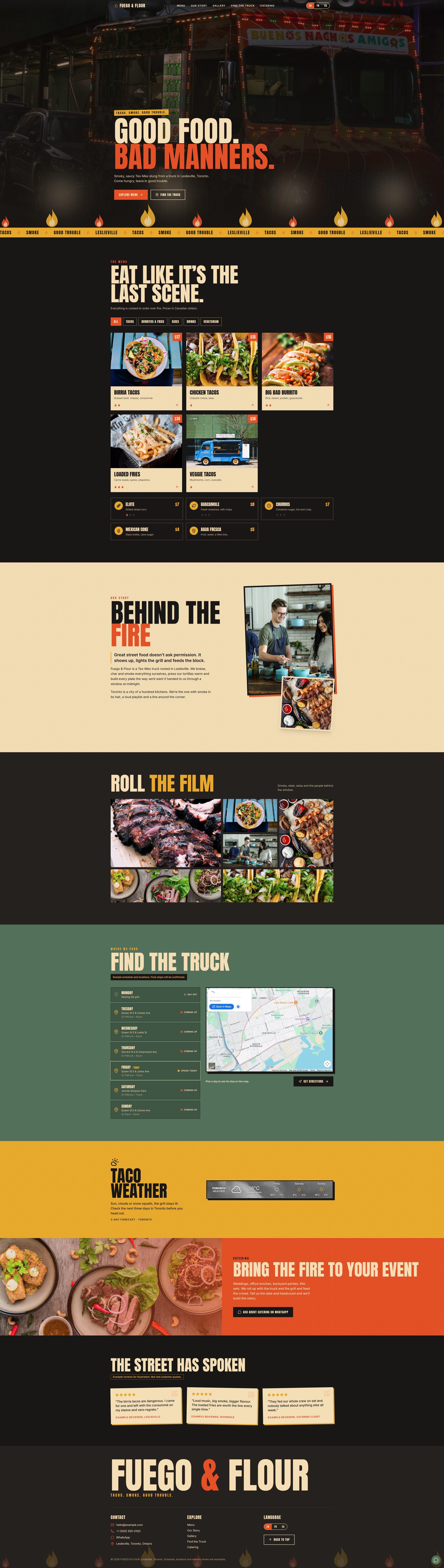
We developed Fuego & Flour, based in Leslieville, Toronto, with a charcoal, chili red, tortilla cream, mustard yellow, and cactus green palette.
The tagline was TACOS. SMOKE. GOOD TROUBLE. The hero headline: GOOD FOOD. BAD MANNERS.
We also put together a sample menu: tacos, burritos, loaded fries, vegetarian options, and drinks, with descriptions and prices in Canadian dollars.
Those details gave the website something to work with. “Build a food truck website” leaves a lot open. A name, location, menu, and visual direction make the request much more concrete.
If you’re building for an existing business, you already have a head start. Use your actual services, prices, location, and photographs. I needed to invent those because this was a demonstration; you can start with what your customers already know you for.
2. Decide What Visitors Should Be Able to Do
I wanted visitors to be able to browse the food, find the truck, and ask a question. That shaped the features I requested:
- An interactive menu with photographs, descriptions, CAD prices, and spice indicators.
- English and French content with a language selector.
- An embedded Google Map and a sample weekly schedule.
- A floating WhatsApp button for customer inquiries.
- A Toronto weather forecast for people planning a visit.
- A gallery and catering section to show the food and introduce event inquiries.
- Hover effects and animations to give the design some movement.
The weather forecast was a useful experiment in adding an outside service. I used WeatherWidget.io to configure a three-day Toronto forecast, then included its integration details in the website prompt.
That gave the builder a specific widget to incorporate. It also gave me a layout problem to solve later.
3. Turn the Brief Into One Starting Prompt
At the time of this test, Rebel Vibe’s initial prompt field supported up to 5,000 characters. I asked ChatGPT to combine the concept, content, design direction, and features into instructions that would fit.
We trimmed the explanations and kept the details that would affect the result: what the business was, how it should look, and what visitors should be able to do.
Here’s the original prompt I used. It records what I requested; the walkthrough below shows what I observed afterward.
The Original Prompt
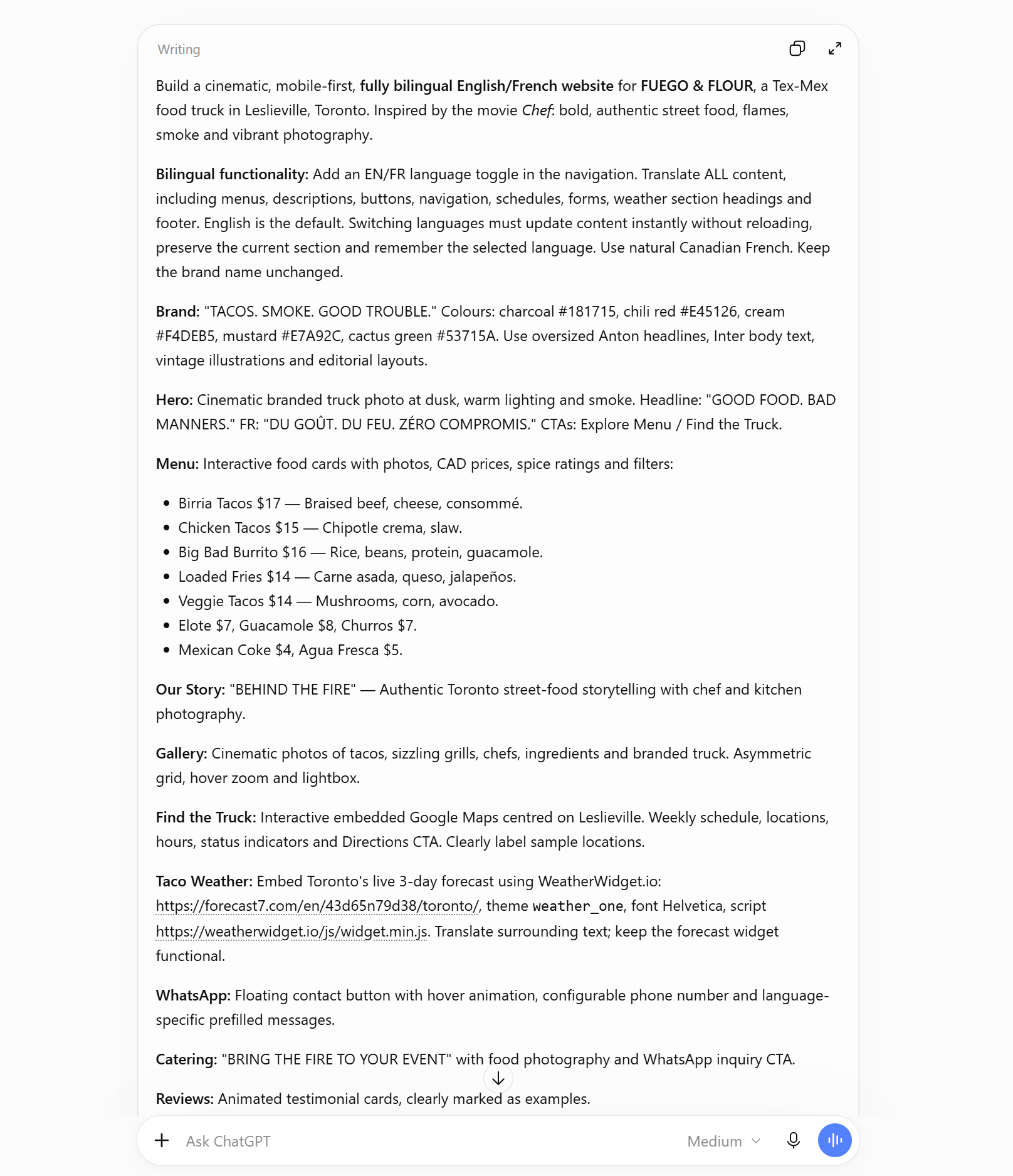
Build a cinematic, mobile-first, fully bilingual English/French website for FUEGO & FLOUR, a Tex-Mex food truck in Leslieville, Toronto. Inspired by the movie Chef: bold, authentic street food, flames, smoke and vibrant photography.
Bilingual functionality: Add an EN/FR language toggle in the navigation. Translate ALL content, including menus, descriptions, buttons, navigation, schedules, forms, weather section headings and footer. English is the default. Switching languages must update content instantly without reloading, preserve the current section and remember the selected language. Use natural Canadian French. Keep the brand name unchanged.
Brand: "TACOS. SMOKE. GOOD TROUBLE." Colours: charcoal #181715, chili red #E45126, cream #F4DEB5, mustard #E7A92C, cactus green #53715A. Use oversized Anton headlines, Inter body text, vintage illustrations and editorial layouts.
Hero: Cinematic branded truck photo at dusk, warm lighting and smoke. Headline: "GOOD FOOD. BAD MANNERS." FR: "DU GOÛT. DU FEU. ZÉRO COMPROMIS." CTAs: Explore Menu / Find the Truck.
Menu: Interactive food cards with photos, CAD prices, spice ratings and filters:Birria Tacos $17 — Braised beef, cheese, consommé.Chicken Tacos $15 — Chipotle crema, slaw.Big Bad Burrito $16 — Rice, beans, protein, guacamole.Loaded Fries $14 — Carne asada, queso, jalapeños.Veggie Tacos $14 — Mushrooms, corn, avocado.Elote $7, Guacamole $8, Churros $7.Mexican Coke $4, Agua Fresca $5.
Our Story: "BEHIND THE FIRE" — Authentic Toronto street-food storytelling with chef and kitchen photography.
Gallery: Cinematic photos of tacos, sizzling grills, chefs, ingredients and branded truck. Asymmetric grid, hover zoom and lightbox.
Find the Truck: Interactive embedded Google Maps centred on Leslieville. Weekly schedule, locations, hours, status indicators and Directions CTA. Clearly label sample locations.
Taco Weather: Embed Toronto's live 3-day forecast using WeatherWidget.io: https://forecast7.com/en/43d65n79d38/toronto/, themeweather_one, font Helvetica, script https://weatherwidget.io/js/widget.min.js. Translate surrounding text; keep the forecast widget functional.
WhatsApp: Floating contact button with hover animation, configurable phone number and language-specific prefilled messages.
Catering: "BRING THE FIRE TO YOUR EVENT" with food photography and WhatsApp inquiry CTA.
Reviews: Animated testimonial cards, clearly marked as examples.
Interactions: Make hover effects a signature feature! Cards lift, photos zoom, buttons slide, arrows animate, navigation underlines expand, text reveals on scroll. Add smooth scrolling, parallax, interactive map markers and decorative flame animations.
Final details: Sticky navigation with prominent EN/FR toggle, bold footer, mobile-friendly interactions, accessibility, SEO withhreflangsupport and fast loading.
Create a premium, visually striking bilingual experience. Both languages must have complete, consistent content and identical functionality. Avoid generic templates, fake business details and untranslated text.
I pasted it into Rebel Vibe and started generating the website.
4. Watch the First Version Take Shape
About five to six minutes later, I had a first version to explore: a branded homepage, food images, menu sections, language options, interactive elements, and the embedded forecast.
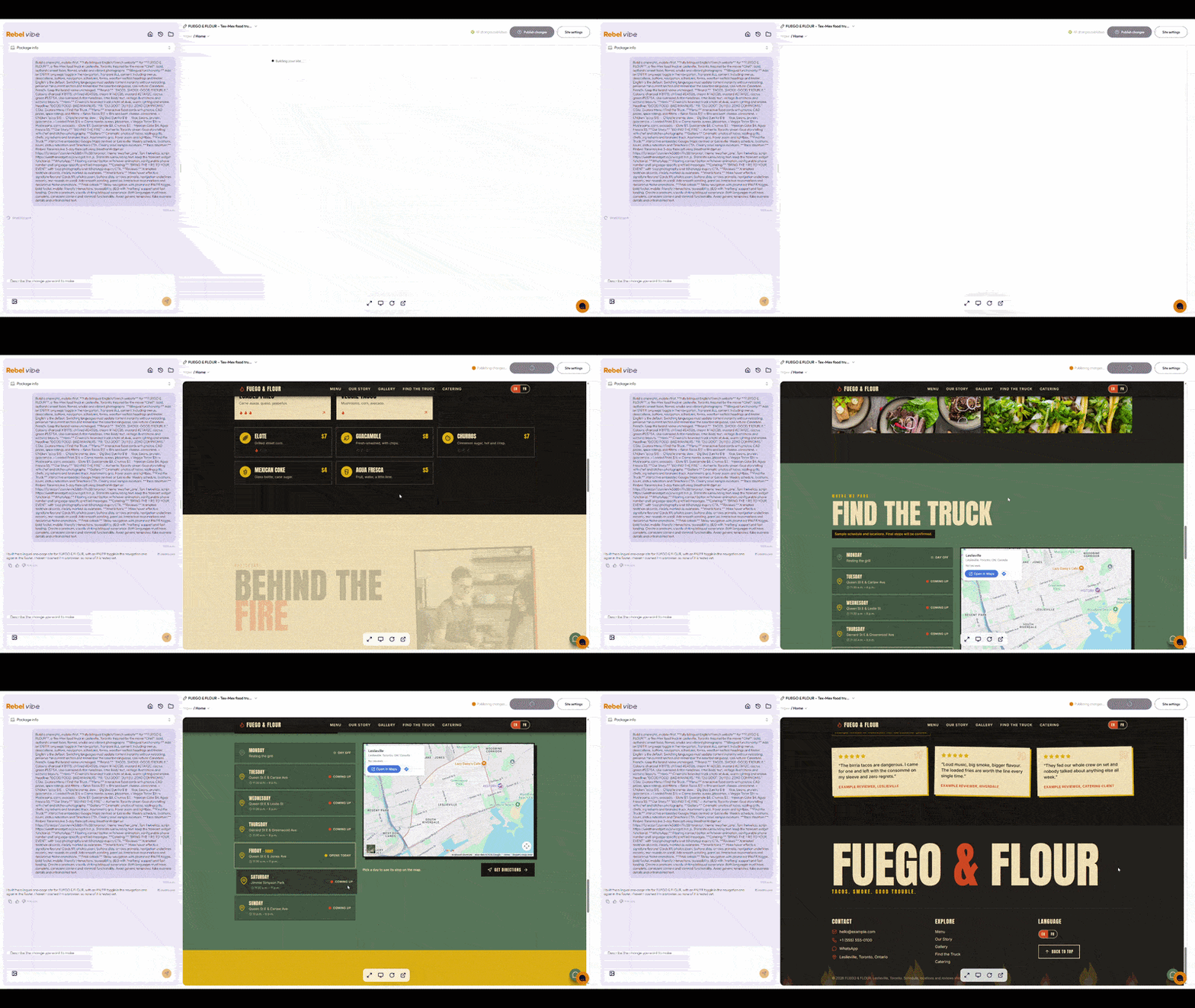
The useful shift was having something visible to react to.
I could look at the homepage and decide whether the photograph worked. I could scroll to the weather section and see where the layout needed attention. The design decisions were now attached to an actual page.
The first version gave me a starting point. Next came the changes that made it feel more like the site I had in mind.
5. Find a Better Hero Image
The main photograph was one of the first things I wanted to change.
For a real business, I’d start with your own images where possible. Show the food you serve, the work you do, or the people customers will meet. That helps visitors understand what they can expect.
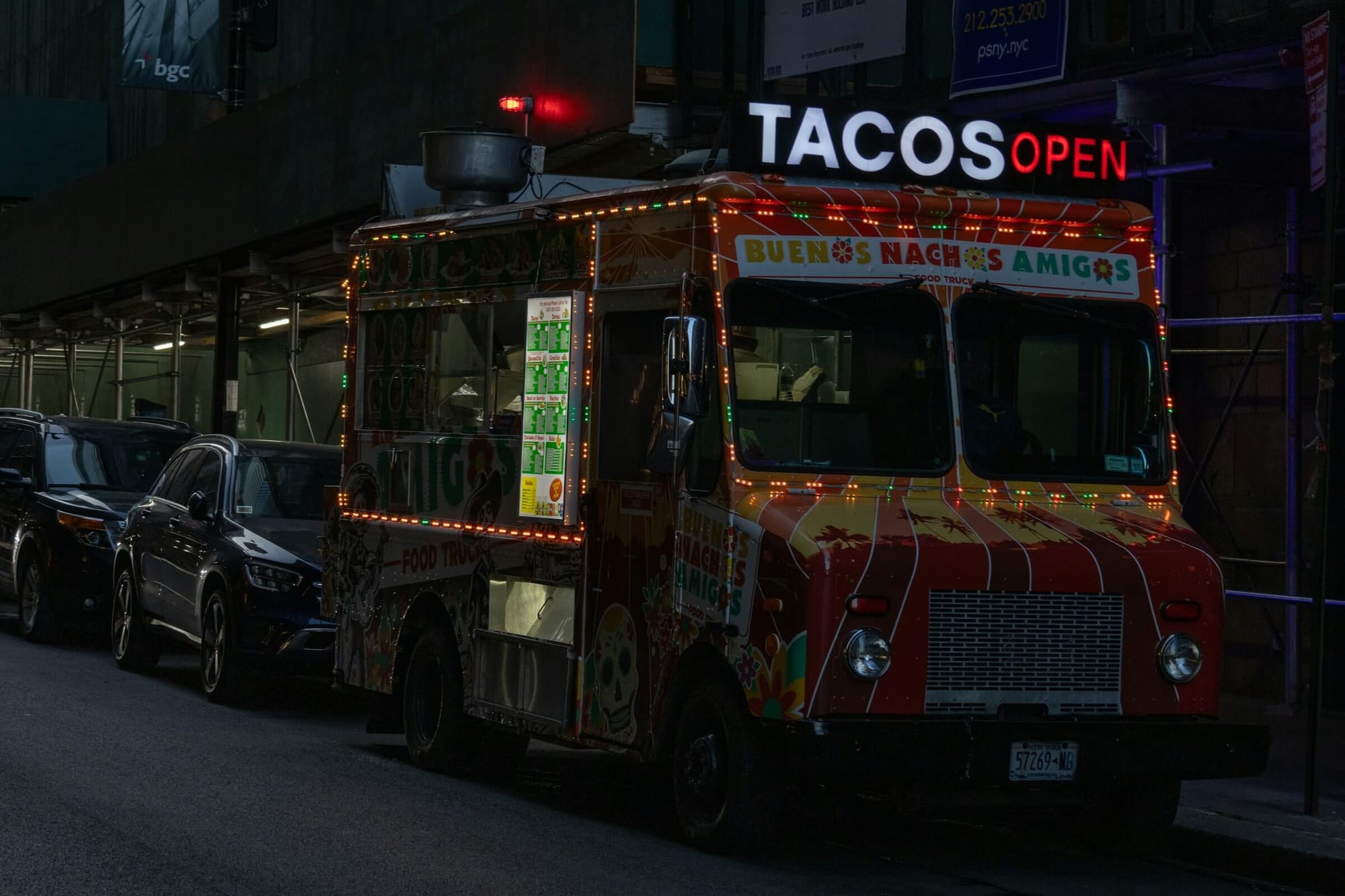
For this fictional business, I looked on Unsplash.
One detail made the search easier: image orientation. A wide hero section needs a photograph that works when cropped horizontally. Portrait and square images may suit other parts of the page.
I used the search filters to find a suitable image, checked the applicable licence, and downloaded a 2400 × 1807-pixel photograph.
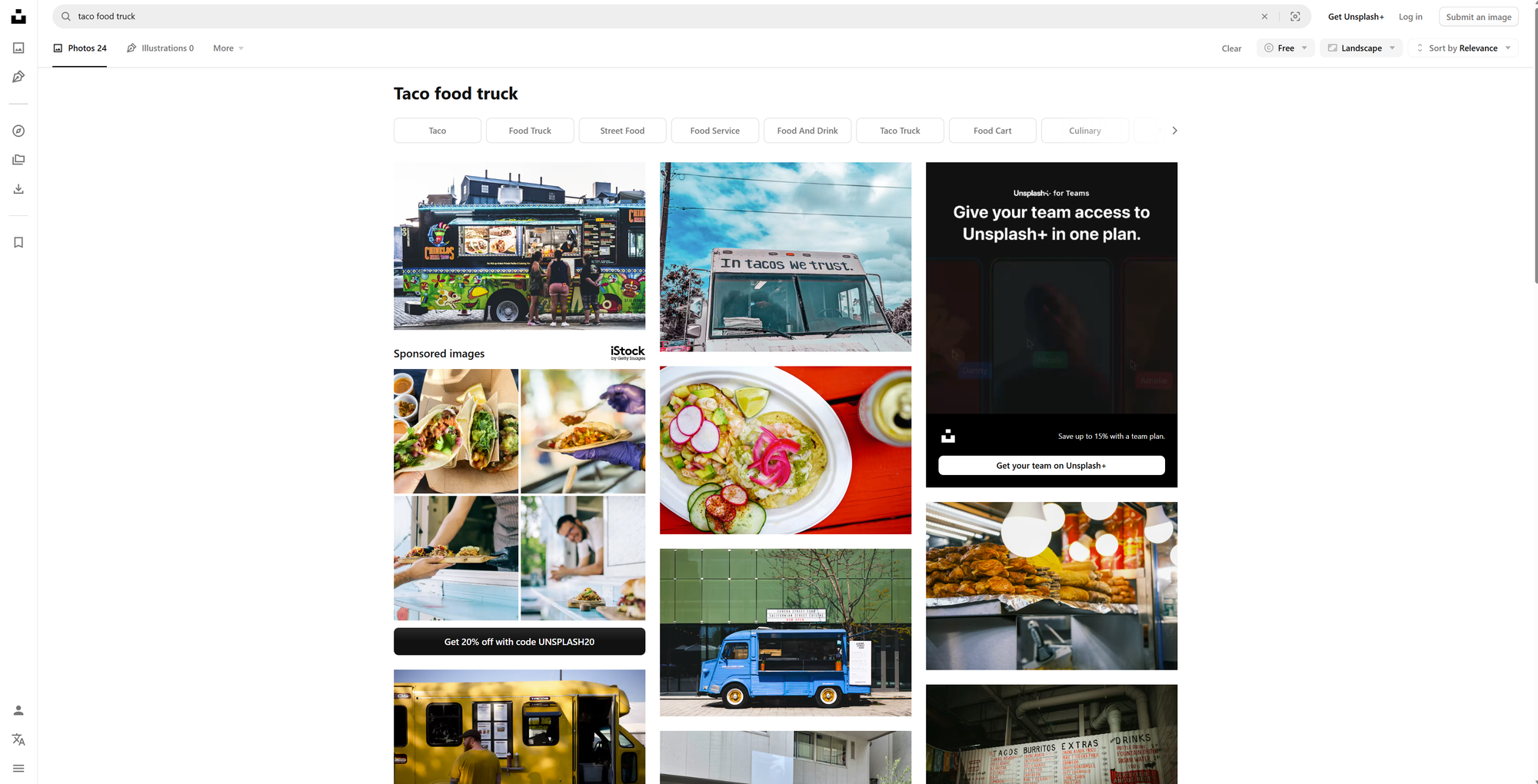
Show the search results, orientation filters, and free-image options used in the test.
Before uploading it, I reduced the file size.
6. Make the Image Lighter Before Uploading
The JPEG was 669 KB. I uploaded it to TinyPNG and downloaded a compressed version at 320 KB.
| Version | File size |
|---|---|
| Original JPEG | 669 KB |
| Compressed JPEG | 320 KB |
| Reduction | Approximately 52% |

That meant less image data for a visitor’s browser to download. I didn’t measure a page-speed improvement in this experiment, but reducing the file size was a straightforward preparation step before adding the photograph.
7. Replace the Image With a Sentence
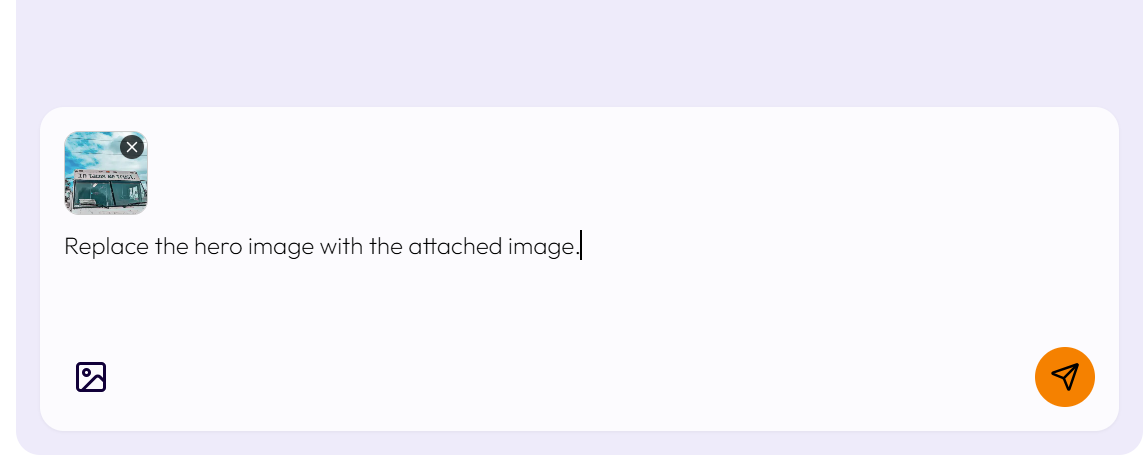
Back in Rebel Vibe, I clicked Attach Image, uploaded the compressed photograph, and typed:
Replace the hero image with the attached image.
Rebel Vibe replaced it.
After seeing the new photograph in place, I still wasn’t completely happy with it. But I now knew how to try another: choose an image, compress it, attach it, and ask for the replacement.
That’s a useful way to approach the first version of a website. You can make a decision, see it in context, and revise it without treating each choice as permanent.
8. Fix the Weather Section With a More Specific Request
The Toronto forecast was working, but it didn’t fit properly inside the surrounding container.
My first request was to resize the widget. That didn’t solve it.
The next request identified the part that needed to change: the container around the widget. I wanted to keep the functioning weather integration and adjust the space holding it.
The Prompt That Worked
In the Taco Weather section, the embedded weather widget doesn't fit properly inside its container. Do not modify the widget's embed code, script, or internal dimensions. Instead, adjust the parent container's width, height, padding, and layout to accommodate the widget's existing dimensions. The container should adapt to the widget, not the other way around. Ensure everything fits naturally without clipping, overflow, or unnecessary empty space, on both desktop and mobile. Keep the weather widget fully functional and do not change anything else on the website.
This time, the container adjusted, the forecast fit, and the widget remained functional.
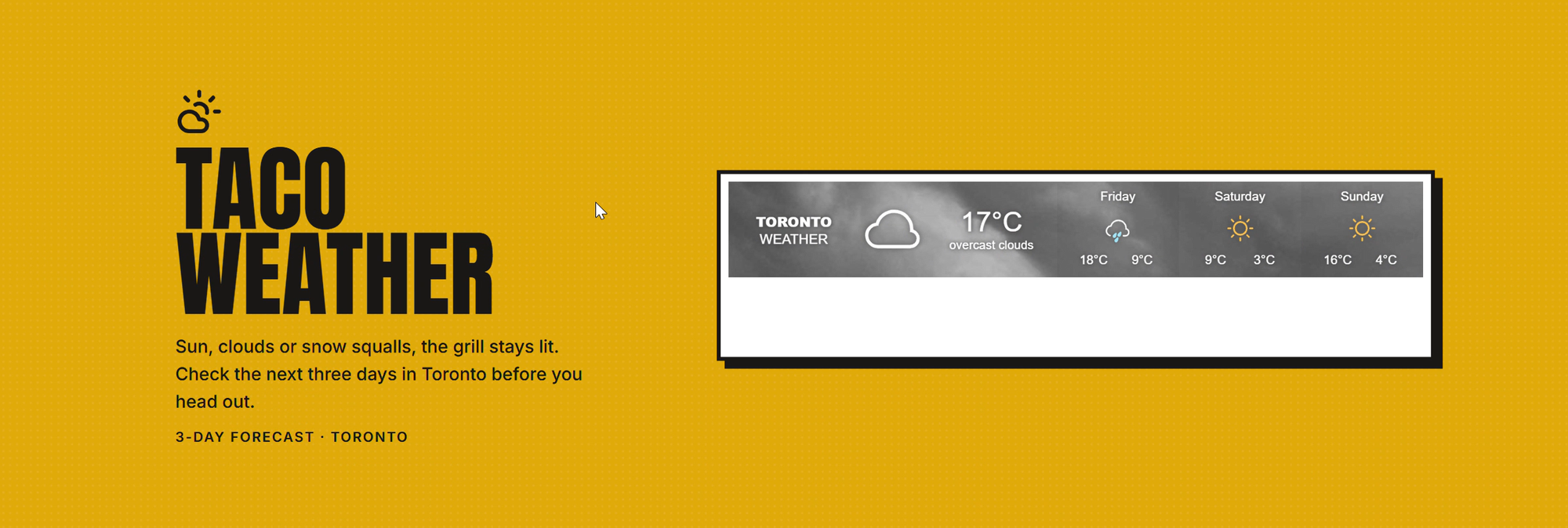
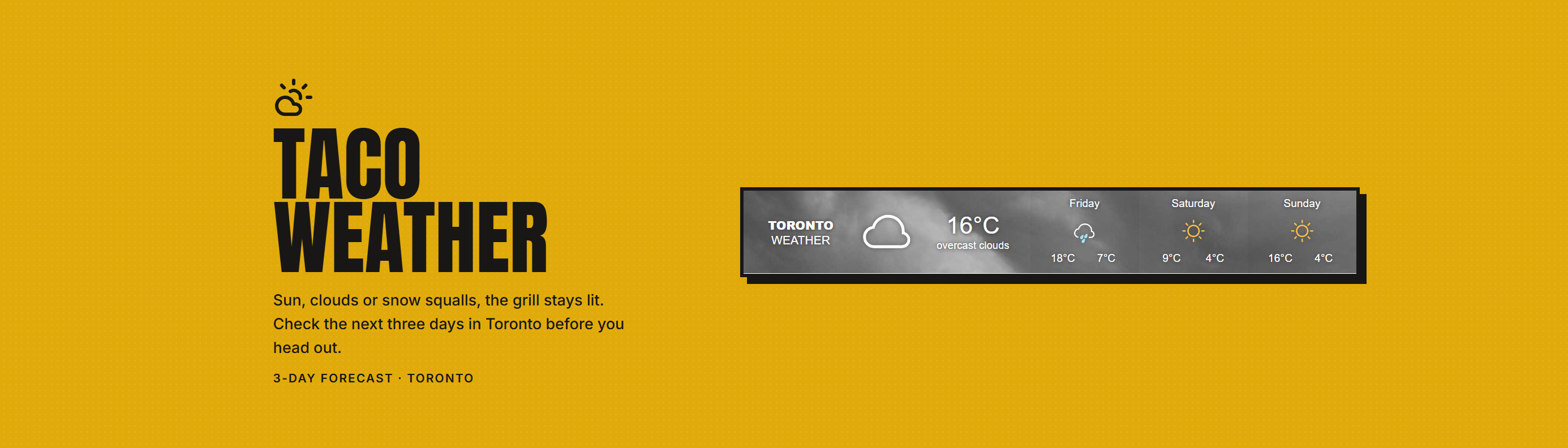
The difference was the instruction. It named the problem, identified the element to change, and explained what needed to stay intact.
That’s a pattern worth using when a change misses the mark. Describe what you see, what you want to happen, and which working parts should be preserved. In this case, I could resolve the layout through a prompt without manually editing CSS.
9. Give Visitors a Way to Start a Conversation
The original prompt also requested a floating WhatsApp button.
For a food truck, the use is easy to picture. Someone checks the menu on their phone and wants to ask whether an item is available or where the truck is parked.
A button connected to the business’s WhatsApp number can open a conversation with a message already filled in. For example:
Hi Fuego & Flour! Are you in Leslieville today? I’d like to stop by.
The visitor reviews the message and sends it themselves.
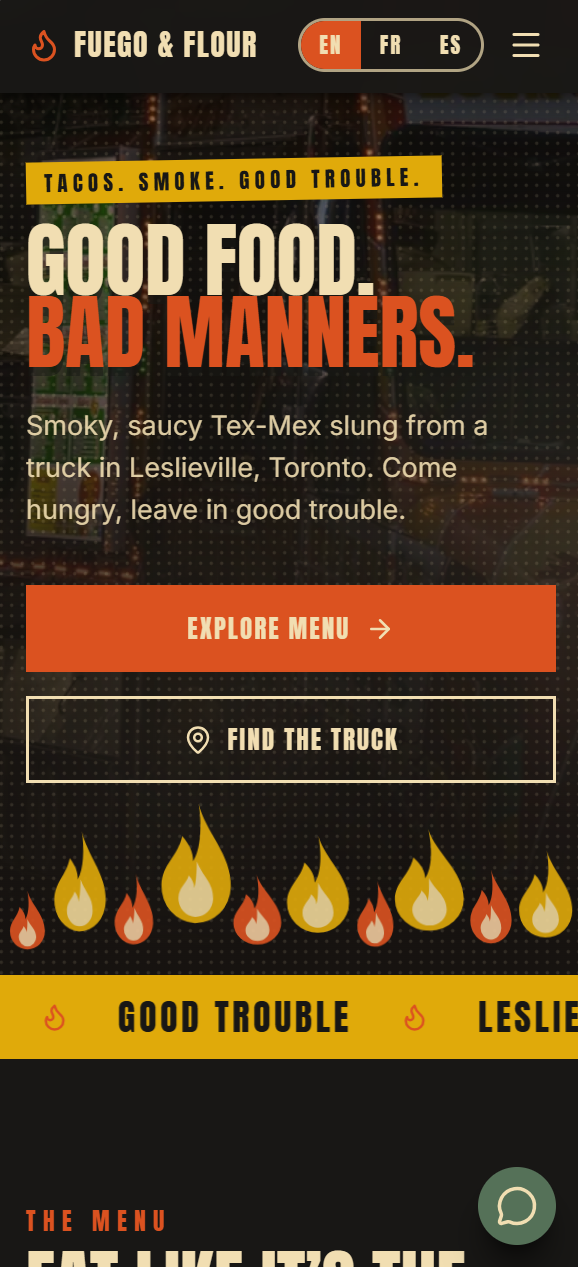
For this demonstration, the button illustrates the contact option; using it with customers requires a configured, tested number.
The same idea could suit a cleaner answering quote requests, a photographer handling availability questions, or a handyman discussing a job. Choose the contact method your business can reliably respond to.
10. Add a Promotion in English and French
Next, I tested a welcome pop-up with a simple sample offer: mention TEQUILA when buying in person and get 10% off.
I wanted it to appear after 15 seconds, match the site, work on mobile, and be easy to close.
The Exact Pop-Up Prompt
Add a welcome pop-up that appears after visitors spend 15 seconds on the website. Match the site’s existing style, make it mobile-friendly, and include a clear close button. Use this copy: Welcome! Here’s a little something for your visit. Say TEQUILA to our staff at checkout and get 10% off your in-store purchase! Make TEQUILA and 10% OFF visually prominent. Clearly state that the offer is for in-store purchases. Button: Got it!
Rebel Vibe added the pop-up. The detail that stood out was that it appeared in both English and French, following the selected website language.
I hadn’t supplied a separate French prompt for the promotion.
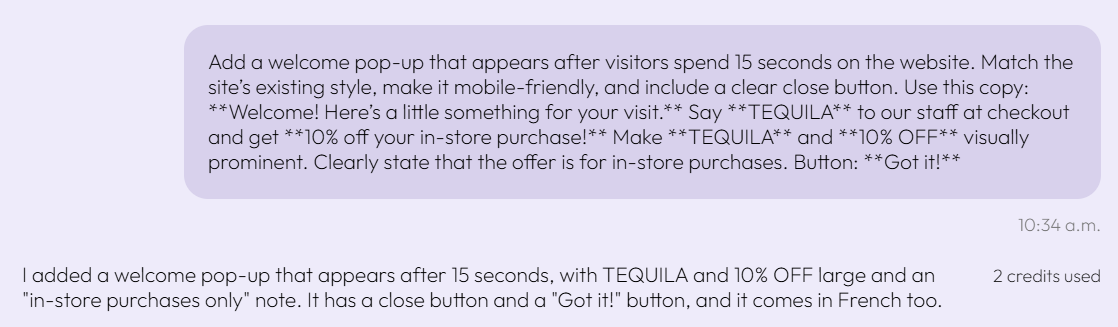
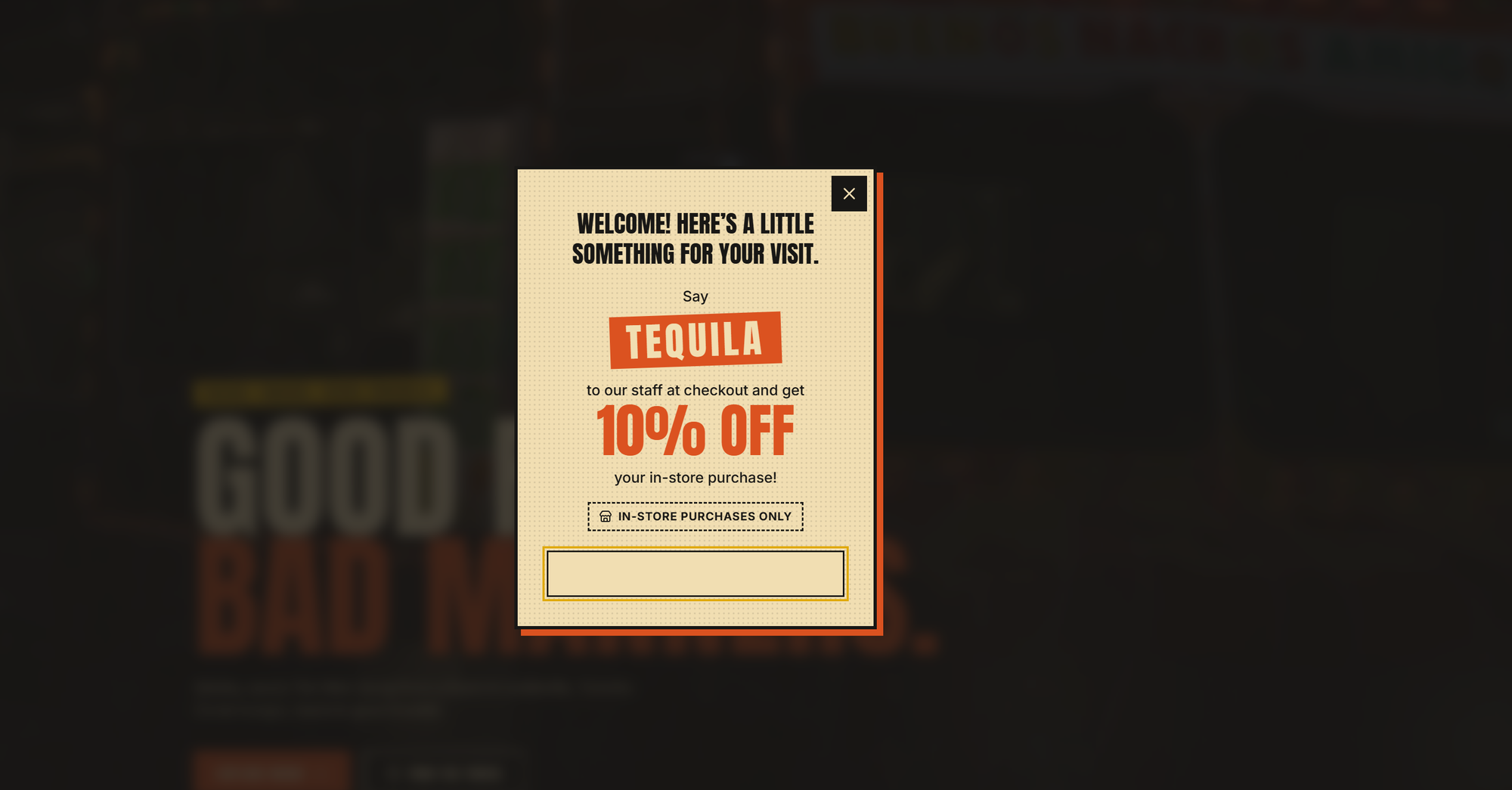
This was a useful test of adding something to an existing site: the new feature followed the language setup already in place.
The promotion was part of the fictional food truck demonstration. For a real offer, define the applicable terms and make sure staff know how to honour it.
11. Push the Test Further With Mexican Spanish
The bilingual pop-up led to another question: could I extend the existing language system to include Mexican Spanish?
This request went beyond translating a headline. It covered navigation, menu descriptions, buttons, the promotion, and other messages, while keeping the English and French versions intact.
Here’s the prompt prepared for that next test:
The Prompt to Add Mexican Spanish
Upgrade the entire Fuego & Flour website from bilingual to fully trilingual: English (EN), Canadian French (FR-CA), and Mexican Spanish (ES-MX).
Add ES to the existing EN/FR language selector, displaying EN | FR | ES. Preserve the current design and functionality. English remains the default.
Translate all website content into natural, culturally authentic Mexican Spanish, including navigation, headlines, menu items, descriptions, buttons, schedules, catering information, footer, metadata, and dynamic messages.
Translate the existing 15-second welcome pop-up. Keep TEQUILA unchanged as the redemption code and display "10% DE DESCUENTO" prominently. Clearly state that the offer applies to in-person purchases.
Switching languages must update all content without reloading the page, preserve the visitor's current section, and remember the selected language. Include language-specific WhatsApp messages.
Keep prices in CAD, preserve the brand name and Toronto locations, and maintain all existing integrations.
Do not redesign or rebuild the website. Extend the current language system while preserving all existing English and French content.
Adding a third language also means checking the layout. Longer labels need room. The selector needs another option. New content, including the pop-up, needs to follow the visitor’s choice consistently.
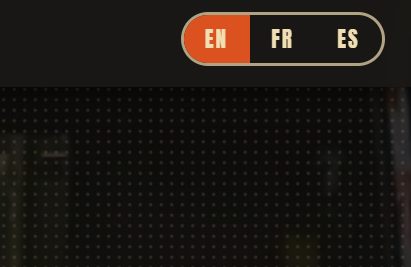
The English and French pop-up worked in this test. The Spanish expansion remains a separate test to verify before describing the site as fully trilingual.
12. Publish the Website
Once the site was ready for this demonstration, I clicked Publish Changes. Then I opened Site Settings to access the published website.
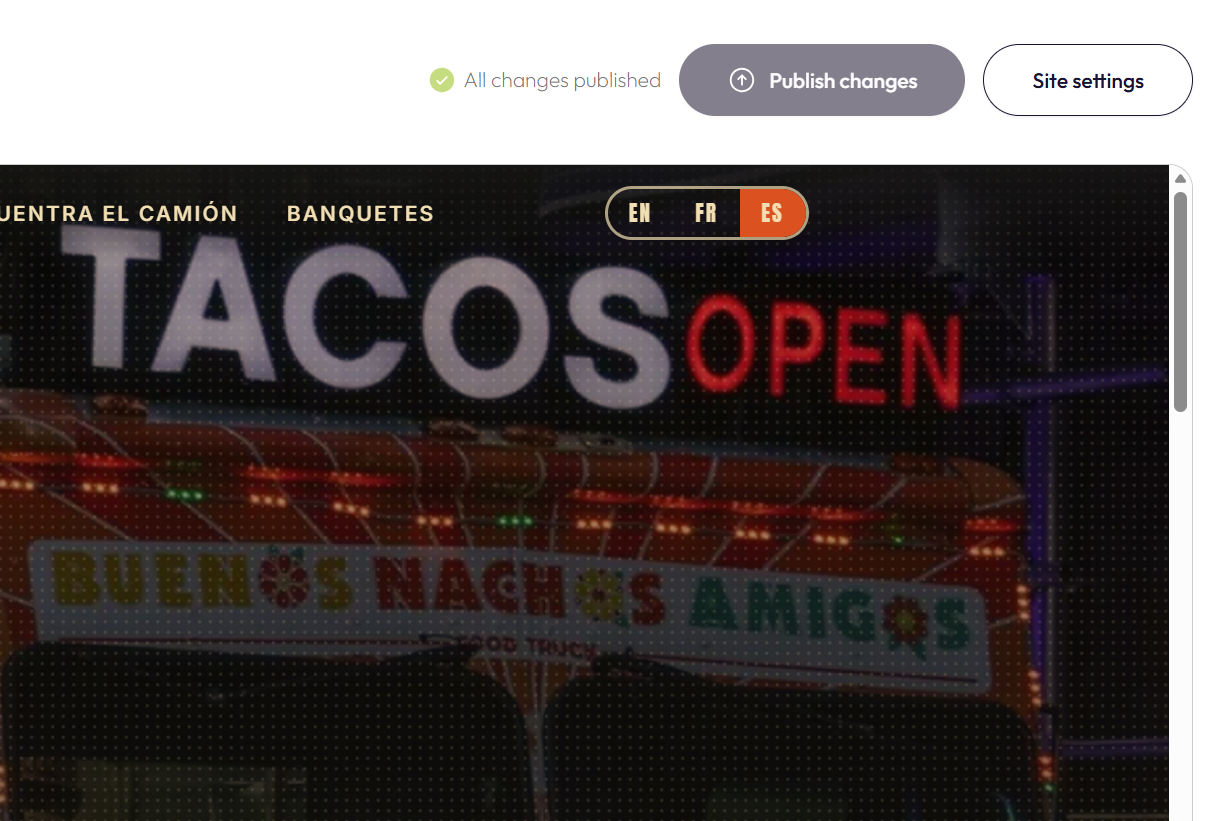
I could now open the site outside the builder and explore it as a visitor.
There was also a Publish to Custom Domain option. I didn’t need a custom domain for this experiment, so that wasn’t part of the test.
What This Test Taught Me
The first prompt got the website started. The follow-up requests made it more useful.
Changing the hero photograph showed how easily I could try a different visual direction. Fixing the weather section showed why a precise request matters. Adding the pop-up showed a new feature following the existing bilingual setup.
The test also had clear boundaries. Fuego & Flour is fictional, so this doesn’t demonstrate customer demand, sales, or results for a working food truck. And a feature requested in a prompt still needs to be checked on the site.
What it does demonstrate is a practical building process: describe what you need, inspect the result, ask for a specific change, and check it again.
You can begin with what you already know about your business and develop the website from there.
Useful Tools to Bring Into the Process
Several outside tools helped with this experiment. Others offer ways to extend the same approach. Here’s where each fits—and which ones I actually used.
CSS Peeper: Turn Design Inspiration Into Specific Instructions
It’s easy to say you like a website. It can be harder to explain what you like about it.
Is it the typography? The colours? The photographs?
I used CSS Peeper, a browser extension for exploring visual details on a page, to take a closer look at Apple’s website.
In that inspection, I could examine font information—including SF Pro Display and SF Pro Text—along with detected colours and image assets.
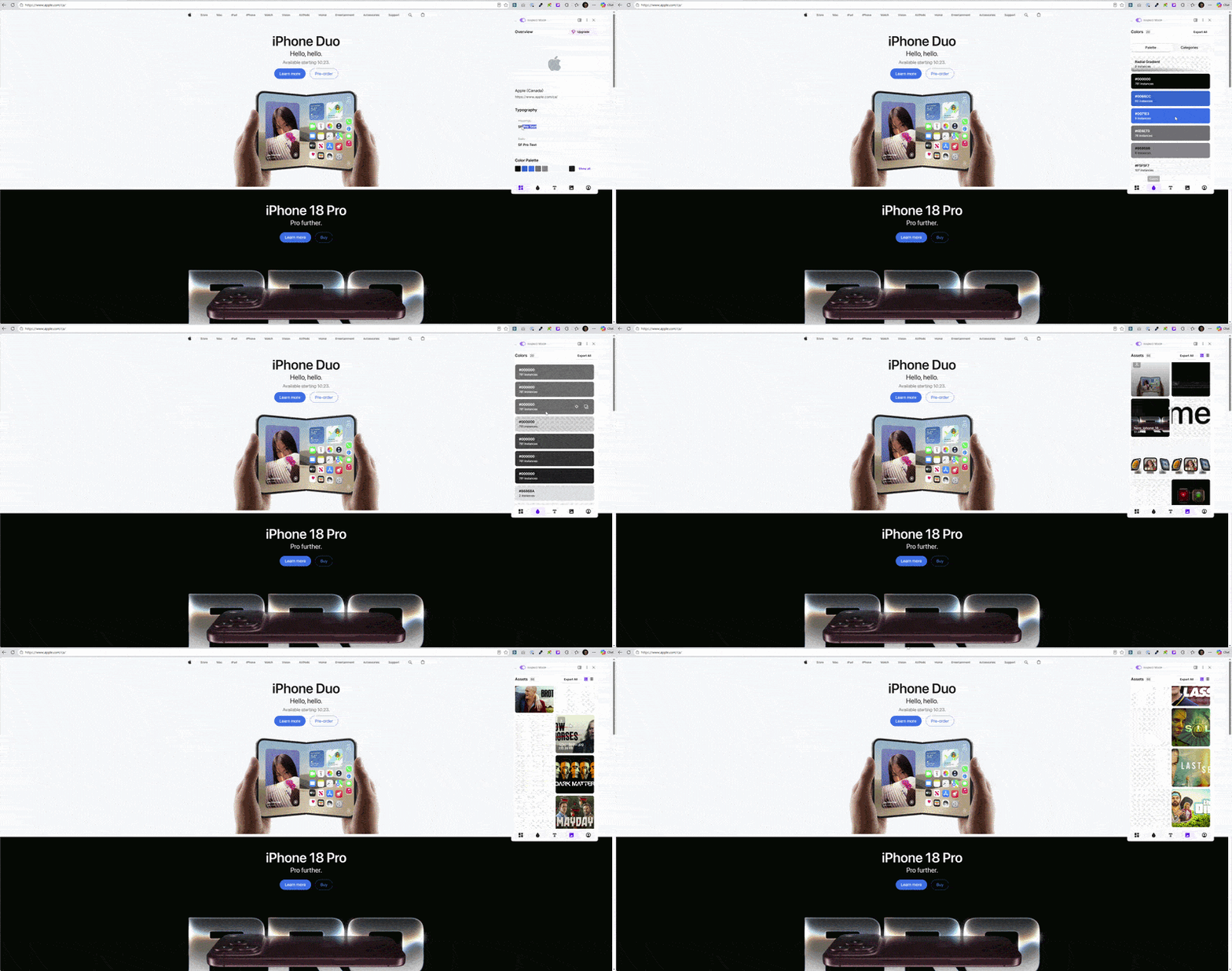
That gives you a more useful starting point for a design request. Instead of “make it look modern,” you might write:
Use generous whitespace, large headings, neutral colours, and prominent photography. Choose a font available for this project and keep the layout focused on one clear action per section.
Use the inspection to identify design choices you can describe in your own brief. Access to another site’s assets doesn’t grant permission to reuse them.
Unsplash: Find an Image That Fits the Space
I used Unsplash to find an alternative hero photograph. Search with the intended placement in mind: a wide banner and a small portrait card need different compositions. Check the selected image’s licence before use.
TinyPNG: Reduce the File Size
I used TinyPNG before uploading the new photograph. In this test, it reduced the JPEG from 669 KB to 320 KB, about 52% smaller.
WeatherWidget.io: Add a Forecast
I used WeatherWidget.io for the Toronto forecast. The integration worked, and the surrounding layout needed a follow-up adjustment. That’s why checking an embedded feature in context matters.
Calendly: A Scheduling Option to Explore
Scheduling wasn’t part of this food truck test. For an appointment-based business, an external booking tool such as Calendly is another integration to investigate.
Once you have the appropriate embed code, a starting request could be:
Add a Book an Appointment section using the supplied Calendly embed code. Make the surrounding layout fit the website and check the display on desktop and mobile.
Then test the booking journey before relying on it with customers.
Google Forms and Tally: Form Options to Explore
Forms weren’t tested in this experiment either. If you need a contact form, survey, or catering inquiry, Google Forms and Tally are external options to investigate.
With your form and embed code ready, you could ask:
Add a catering inquiry section using the supplied form embed code. Make the surrounding section match the website and fit on desktop and mobile.
Check the complete journey, including where submissions arrive.
WhatsApp and Pop-Ups: Give Each Feature a Job
A contact button gives visitors a way to ask a question. A promotion gives them an offer to consider. Both should have a clear purpose, and the business needs to be ready to handle what happens next.
For Fuego & Flour, those jobs were specific: ask about the truck and redeem a sample in-person discount. That made the features easier to request and assess.
Start With One Thing Your Customers Need
You don’t need a fictional food truck or a movie reference to try this with your own business.
Start with what you do and the next thing a visitor should be able to do: see your work, understand a service, browse a menu, or contact you.
Give Rebel Vibe those details. Generate a first version, look at it on your phone, and choose one thing to improve.
That was the most useful part of this experiment: having a website I could keep shaping through specific requests.
Build Your Website